NET Gnomes

Showing posts with label internet. Show all posts

All About Spyware

What is spyware?

Spyware is Internet jargon for Advertising Supported software (Adware). It is a way for shareware authors to make money from a product, other than by selling it to the users. There are several large media companies that offer them to place banner ads in their products in exchange for a portion of the revenue from banner sales. This way, you don't have to pay for the software and the developers are still getting paid. If you find the banners annoying, there is usually an option to remove them, by paying the regular licensing fee.

---


Known spywares

Alexa, Aureate/Radiate, BargainBuddy, ClickTillUWin, Conducent Timesink, Cydoor, Comet Cursor, eZula/KaZaa Toptext, Flashpoint/Flashtrack, Flyswat, Gator, GoHip, Hotbar, ISTbar, Lions Pride Enterprises/Blazing Logic/Trek Blue, Lop (C2Media), Mattel Brodcast, Morpheus, NewDotNet, Realplayer, Songspy, Xupiter, Web3000, WebHancer, Windows Messenger Service

How to check if a program has spyware?

If you would like to block pop-ups (IE Pop-ups).
There tons of different types out there, these are some examples:
Google Toolbar
AdMuncher

If you want to remove the spyware try these:
Lavasoft AdAware
Info: Ad-aware is a multi spyware removal utility, that scans your memory, registry and hard drives for known spyware components and lets you remove them. The included backup-manager lets you reinstall a backup, offers and multi language support.

Spybot-S&D
Info: Detects and removes spyware of different kinds (dialers, loggers, trojans, user tracks) from your computer. Blocks ActiveX downloads, tracking cookies and other threats. Over 10,000 detection files and entries. Provides detailed information about found problems.

BPS Spyware and Adware Remover
Info: Adware, spyware, trackware and big brotherware removal utility with multi-language support. It scans your memory, registry and drives for known spyware and lets you remove them. Displays a list and lets you select the items you'd like to remove.

Spy Sweeper v2.2
Info: Detects and removes spyware of different kinds (dialers, loggers, trojans, user tracks) from your computer.

HijackThis 1.97.7
Info: HijackThis is a tool, that lists all installed browser add-on, buttons, startup items and allows you to inspect them, and optionally remove selected items.


If you would like to prevent spyware being installed, try:
SpywareBlaster 2.6.1
Info: SpywareBlaster doesn`t scan and clean for so-called spyware, but prevents it from being installed in the first place. It achieves this by disabling the CLSIDs of popular spyware ActiveX controls, and also prevents the installation of any of them via a web page.

SpywareGuard 2.2
Info: SpywareGuard provides a real-time protection solution against so-called spyware. It works similar to an anti-virus program, by scanning EXE and CAB files on access and alerting you if known spyware is detected.

XP-AntiSpy
Info: XP-AntiSpy is a small utility to quickly disable some built-in update and authentication features in WindowsXP that may rise security or privacy concerns in some people.

SpySites
Info: SpySites allows you to manage the Internet Explorer Restricted Zone settings and easily add entries from a database of 1500+ sites that are known to use advertising tracking methods or attempt to install third party software.

More information about spyware:


All these softwares will help remove and prevent evil spammers and spywares attacking your PC. I myself recommend getting spyblaster, s&d spybot, spy sweeper, & admuncher to protect your PC. A weekly scan is also recommended.
---------------------------------

How To Optimize DSL-CABLE Connection Speed


First, u need to go to Start, then run. (or click windows icon + r)

Type in regedit in the box.
Next, goto the folder HKEY_LOCAL_MACHINE\System\CurrentControlSet\VxD\MSTCP.
Find the string DefaultRcvWindow.
Now, edit the number to 64240 then restart your computer.
Original value is 373360.
That's it.


---------------------------------


Share you links and EARN!!!
Click HERE.


Speed Up Your Network and Internet Access

This is for Windows XP.

Does your computer slow down when you browse your local area network and connect to other computers that are sharing data? One of the most common causes of this slowdown is a feature of Windows Explorer that looks for scheduled tasks on remote computers. This effort can take some time on some computers and can really slow down your browsing. The window with which you are browsing the network may appear to freeze momentarily, as the system is waiting for a response from the remote computer.

Windows XP: Speeding Disk Access

Although this problem is a complex one, the solution is very simple. Instead of having to wait for the remote scheduled tasks, which is useless information to anyone who is not a system administrator remotely configuring scheduled tasks, you can disable this feature.

In order to do this, you will have to change the System Registry and delete a reference to a key so that this feature will not be loaded. To do this, follow these steps:

1. Open up the Registry Editor by clicking the Start Menu and selecting Run. Then type regedit in the text box and click the OK button.

2. Once the Registry Editor has loaded, expand the HKEY_LOCAL_MACHINE key.

3. Next, expand Software and then Microsoft.

4. Locate Windows and expand that as well.


5. You will want to be editing the main system files, so expand CurrentVersion.


6. Because this feature is a feature of the Windows component known as Explorer, expand the Explorer key.

7. Next, you will want to modify the remote computer settings, so expand the RemoteComputer key and then expand the NameSpace key to show all of the features that are enabled when you browse to a remote computer.


8. In the NameSpace folder you will find two entries. One is "{2227A280-3AEA-1069-A2DE-08002B30309D}" which tells Explorer to show printers shared on the remote machine. The other, "{D6277990-4C6A-11CF-8D87-00AA0060F5BF}," tells Explorer to show remote scheduled tasks. This is the one that you should delete. This can be done by right-clicking the name of the key and selecting Delete.


Tip:
If you have no use for viewing remote shared printers and are really only interested in shared files, consider deleting the printers key, "{2227A280-3AEA-1069-A2DE-08002B30309D}", as well. This will also boost your browsing speed.

Once you have deleted the key, you just need to restart and the changes will be in effect. Now your network computer browsing will be without needless delays.


Share you links and EARN!!!
Click HERE.


Ways To Speed Up Windows XP


1.) To decrease a system's boot time and increase system performance, use the money you save by not buying defragmentation software -- the built-in Windows defragmenter works just fine -- and instead equip the computer with an Ultra-133 or Serial ATA hard drive with 8-MB cache buffer.


2.) If a PC has less than 512 MB of RAM, add more memory. This is a relatively inexpensive and easy upgrade that can dramatically improve system performance.

3.) Ensure that Windows XP is utilizing the NTFS file system. If you're not sure, here's how to check: First, double-click the My Computer icon, right-click on the C: Drive, then select Properties. Next, examine the File System type; if it says FAT32, then back-up any important data. Next, click Start, click Run, type CMD, and then click OK. At the prompt, type CONVERT C: /FS:NTFS and press the Enter key. This process may take a while; it's important that the computer be uninterrupted and virus-free. The file system used by the bootable drive will be either FAT32 or NTFS. I highly recommend NTFS for its superior security, reliability, and efficiency with larger disk drives.

4.) Disable file indexing. The indexing service extracts information from documents and other files on the hard drive and creates a "searchable keyword index." As you can imagine, this process can be quite taxing on any system.

The idea is that the user can search for a word, phrase, or property inside a document, should they have hundreds or thousands of documents and not know the file name of the document they want. Windows XP's built-in search functionality can still perform these kinds of searches without the Indexing service. It just takes longer. The OS has to open each file at the time of the request to help find what the user is looking for.

Most people never need this feature of search. Those who do are typically in a large corporate environment where thousands of documents are located on at least one server. But if you're a typical system builder, most of your clients are small and medium businesses. And if your clients have no need for this search feature, I recommend disabling it.

Here's how: First, double-click the My Computer icon. Next, right-click on the C: Drive, then select Properties. Uncheck "Allow Indexing Service to index this disk for fast file searching." Next, apply changes to "C: subfolders and files," and click OK. If a warning or error message appears (such as "Access is denied"), click the Ignore All button.

5.) Update the PC's video and motherboard chipset drivers. Also, update and configure the BIOS. For more information on how to configure your BIOS properly, see this article on my site.


6.) Empty the Windows Prefetch folder every three months or so. Windows XP can "prefetch" portions of data and applications that are used frequently. This makes processes appear to load faster when called upon by the user. That's fine. But over time, the prefetch folder may become overloaded with references to files and applications no longer in use. When that happens, Windows XP is wasting time, and slowing system performance, by pre-loading them. Nothing critical is in this folder, and the entire contents are safe to delete.


7.) Once a month, run a disk cleanup. Here's how: Double-click the My Computer icon. Then right-click on the C: drive and select Properties. Click the Disk Cleanup button -- it's just to the right of the Capacity pie graph -- and delete all temporary files.

8.) In your Device Manager, double-click on the IDE ATA/ATAPI Controllers device, and ensure that DMA is enabled for each drive you have connected to the Primary and Secondary controller. Do this by double-clicking on Primary IDE Channel. Then click the Advanced Settings tab. Ensure the Transfer Mode is set to "DMA if available" for both Device 0 and Device 1. Then repeat this process with the Secondary IDE Channel.


9.) Upgrade the cabling. As hard-drive technology improves, the cabling requirements to achieve these performance boosts have become more stringent. Be sure to use 80-wire Ultra-133 cables on all of your IDE devices with the connectors properly assigned to the matching Master/Slave/Motherboard sockets. A single device must be at the end of the cable; connecting a single drive to the middle connector on a ribbon cable will cause signaling problems. With Ultra DMA hard drives, these signaling problems will prevent the drive from performing at its maximum potential. Also, because these cables inherently support "cable select," the location of each drive on the cable is important. For these reasons, the cable is designed so drive positioning is explicitly clear.

10.) Remove all spyware from the computer. Use free programs such as AdAware by Lavasoft or SpyBot Search & Destroy. Once these programs are installed, be sure to check for and download any updates before starting your search. Anything either program finds can be safely removed. Any free software that requires spyware to run will no longer function once the spyware portion has been removed; if your customer really wants the program even though it contains spyware, simply reinstall it. For more information on removing Spyware visit this Web Pro News page.


11.) Remove any unnecessary programs and/or items from Windows Startup routine using the MSCONFIG utility. Here's how: First, click Start, click Run, type MSCONFIG, and click OK. Click the StartUp tab, then uncheck any items you don't want to start when Windows starts. Unsure what some items are? Visit the WinTasks Process Library. It contains known system processes, applications, as well as spyware references and explanations. Or quickly identify them by searching for the filenames using Google or another Web search engine.


12.) Remove any unnecessary or unused programs from the Add/Remove Programs section of the Control Panel.


13.) Turn off any and all unnecessary animations, and disable active desktop. In fact, for optimal performance, turn off all animations. Windows XP offers many different settings in this area. Here's how to do it: First click on the System icon in the Control Panel. Next, click on the Advanced tab. Select the Settings button located under Performance. Feel free to play around with the options offered here, as nothing you can change will alter the reliability of the computer -- only its responsiveness.


14.) If your customer is an advanced user who is comfortable editing their registry, try some of the performance registry tweaks offered at Tweak XP.


15.) Visit Microsoft's Windows update site regularly, and download all updates labeled Critical. Download any optional updates at your discretion.

16.) Update the customer's anti-virus software on a weekly, even daily, basis. Make sure they have only one anti-virus software package installed. Mixing anti-virus software is a sure way to spell disaster for performance and reliability.


17.) Make sure the customer has fewer than 500 type fonts installed on their computer. The more fonts they have, the slower the system will become. While Windows XP handles fonts much more efficiently than did the previous versions of Windows, too many fonts -- that is, anything over 500 -- will noticeably tax the system.


18.) Do not partition the hard drive. Windows XP's NTFS file system runs more efficiently on one large partition. The data is no safer on a separate partition, and a reformat is never necessary to reinstall an operating system. The same excuses people offer for using partitions apply to using a folder instead. For example, instead of putting all your data on the D: drive, put it in a folder called "D drive." You'll achieve the same organizational benefits that a separate partition offers, but without the degradation in system performance. Also, your free space won't be limited by the size of the partition; instead, it will be limited by the size of the entire hard drive. This means you won't need to resize any partitions, ever. That task can be time-consuming and also can result in lost data.


19.) Check the system's RAM to ensure it is operating properly. I recommend using a free program called MemTest86. The download will make a bootable CD or diskette (your choice), which will run 10 extensive tests on the PC's memory automatically after you boot to the disk you created. Allow all tests to run until at least three passes of the 10 tests are completed. If the program encounters any errors, turn off and unplug the computer, remove a stick of memory (assuming you have more than one), and run the test again. Remember, bad memory cannot be repaired, but only replaced.


20.) If the PC has a CD or DVD recorder, check the drive manufacturer's Web site for updated firmware. In some cases you'll be able to upgrade the recorder to a faster speed. Best of all, it's free.


21.) Disable unnecessary services. Windows XP loads a lot of services that your customer most likely does not need. To determine which services you can disable for your client, visit the Black Viper site for Windows XP configurations.


22.) If you're sick of a single Windows Explorer window crashing and then taking the rest of your OS down with it, then follow this tip: open My Computer, click on Tools, then Folder Options. Now click on the View tab. Scroll down to "Launch folder windows in a separate process," and enable this option. You'll have to reboot your machine for this option to take effect.


23.) At least once a year, open the computer's cases and blow out all the dust and debris. While you're in there, check that all the fans are turning properly. Also inspect the motherboard capacitors for bulging or leaks. For more information on this leaking-capacitor phenomena, you can read numerous articles on my site.

Increase Your Internet Speed By 20%

If you use Windows XP Professional then it is possible to squeeze an extra 20% out of your internet connection. By default, Windows XP Pro holds back 20% of your Internet speed for various services like windows update and spyware checks.


If you want to tap into this locked speed then make the following changes:


1. Go to Start-> Run-> and type gpedit.msc

2. Expand the Administrative Templates branch

3. Expand the Network tab

4. Highlight QoS Packet Scheduler

5. Click on Limit Reservable Bandwidth and check the ‘enabled’ box

6. Then Change the Bandwidth limit from % to 0 %


Once you’ve done, this click apply and restart your PC. After rebooting you should see a noticeable improvement in your net speed.


Easy Ways To Double The Speed Of Firefox (Tested and Working)

1. Type about:config in the address bar and then press Enter.


2. In the filter search bar type network.http.pipelining. Be sure the value field is set true,if not double-click to set true. HTTP is the application-layer protocol that most web pages are transferred with. In HTTP 1.1, multiple requests can be sent before any responses are received. This is known as pipelining. Pipelining reduces page loading times, but not all servers support it.


3. Go back to the filter search bar and type network.http.pipelining.maxrequests. Double-click this option and set its value to 8.


4. In the filter search bar and type network.http.proxy.pipelining. Once opened doubleclick on it and set it to true.


5. In IPv6-capable DNS servers, an IPv4 address may be returned when an IPv6 address is requested. It is possible for Mozilla to recover from this misinformation, but a significant delay is introduced.
Type network.dns.disableIPv6 in the filter search bar and set this option to true by double clicking on it.


6. CONTENT INTERRUPT PARSING
This preference controls if the application will interrupt parsing a page to respond to UI events. It does not exist by default. Right-click (Apple users ctrl-click) anywhere in the about:config window, select New and then Boolean from the pop-up menu. Then:
A. Enter content.interrupt.parsing in the New boolean value pop-up window and click OK
B. When prompted to choose the value for the new boolean, select true and click OK.


7. Rather than wait until a page has completely downloaded to display it to the user, Mozilla applications will regularly render what has been received to that point. This option controls the maximum amount of time the application will be unresponsive while rendering pages. Right-click (Apple users ctrl-click) anywhere in the about:config window, select New and then Integer from the pop-up menu.
A. Enter content.max.tokenizing.time in the New integer value pop-up window and click OK
B. You will be prompted to enter a value. Enter 2250000 and click OK.


8. CONTENT NOTIFY INTERVAL
This option sets the minimum amount of time to wait between reflows. Right-click (Apple users ctrl-click) anywhere in the about:config window, select New and then Integer from the pop-up menu.
A. Type content.notify.interval in the New integer value pop-up window and click OK.
B. You will be prompted to enter a value. Enter 750000 and click OK.


9. CONTENT NOTIFY ONTIMER
A. This option sets if to reflow pages at an interval any higher than that specified by content.notify.interval. Right-click (Apple users ctrl-click) anywhere in the about:config window and select New and then Boolean from the pop-up menu.
B. Type content.notify.ontimer in the New boolean value pop-up window and click OK.
C. You will be prompted to choose the value for the new boolean. Select true and click OK.


10. Notify Backoffcount
This option controls the maximum number of times the content will do timer-based reflows. After this number has been reached, the page will only reflow once it is finished downloading. Right-click (Apple users ctrl-click) anywhere in the about:config window and select New and then Integer from the pop-up menu.
A. Enter content.notify.backoffcount in the New integer value pop-up window and click OK.
B. You will be prompted to enter a value. Enter 5 and click OK.


11. CONTENT SWITCH THRESHOLD
You can interact with a loading page when content.interrupt.parsing is set to true. When a page is loading, the application has two modes: a high frequency interrupt mode and a low frequency interrupt mode. The first one interrupts the parser more frequently to allow for greater UI responsiveness during page load.
The low frequency interrupt mode interrupts the parser less frequently to allow for quicker page load. The application enters high frequency interrupt mode when you move the mouse or type on the keyboard and switch back to low frequency mode when you had no activity for a certain amount of time. This preference controls that amount of time. Right-click (Apple users ctrl-click) anywhere in the about:config window and select New and then Integer from the pop-up menu.
A. Enter content.switch.threshold in the New integer value pop-up window and click OK.
B. You will be prompted to enter a value. Enter 750000 and click OK.


12. NGLAYOUT INITIALPAINT DELAY
Mozilla applications render web pages incrementally, they display what’s been received
of a page before the entire page has been downloaded. Since the start of a web page
normally doesn’t have much useful information to display, Mozilla applications will wait a short interval before first rendering a page. This preference controls that interval. Rightclick (Apple users ctrl-click) anywhere in the about:config window and select New and then Integer from the pop-up menu.
A. Enter nglayout.initialpaint.delay in the New integer value pop-up window and click OK.
B. You will be prompted to enter a value. Enter 0 and click OK.

Another Internet Speed Booster


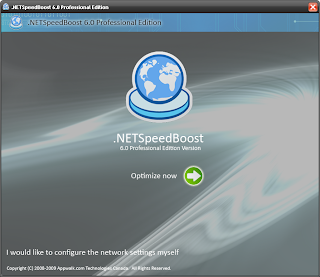
On one of my recent post, I share a download link for an internet speed booster (HERE) and a lot of people became interested that's why I'm going to share another one. This time, it's the Net Speed Boost. It can automatically boost your internet speed and system performance in just one click. Very easy to use. To download, click HERE.


How to Install:
1. Download file.
2. Extract with Winrar.
3. Run the SetUp and Enjoy :]

Download Faster


Get the Download Accelerator Plus (DAP) and speed up your download speed.

Download Accelerator Plus (DAP) is the world's most popular download manager, with over 170 million users worldwide. DAP accelerates your download speed so you can get all your favorite files, applications, and videos as fast as possible. Additionally, DAP features powerful privacy, security, and file management tools letting you download with confidence and flexibility. DAP is easy to use, working automatically with your web browser to provide the fastest download speed possible. DAP 9.1 has been enhanced with the most requested features to provide an even better download experience. Downloading is safer in DAP 9.1 with innovative new download security powered by SpeedBit's Multi Antivirus (MAV) Analysis. In DAP 9.1 you can now choose your Download Style, with Internet Explorer style downloading, that lets you get files with Download Windows, and Firefox style downloading, that presents all your downloads in a Download list. DAP is also being translated into multiple languages by users working on the DAP Wiki project, and support for Internet Explorer 8 and Windows 7 has been added. Additionally, expansions are available for DAP that provide for downloading and acceleration of your favorite videos from YouTube and other popular video sites.
-from SpeedBit


Download DAP HERE.

Ways To Earn Money With The Internet WITHOUT Spending

In this post I just wanna share some links and sites which I uses/used to earn money with the use of the internet. Like you, I also want to find ways to earn some extra money. And one of the options I want is to earn money without spending/giving out my own money (e.g. registration fees).
------------------------------------------------------------------------------------------------------------------


To start with, let's have the popular Google AdSense.

What is Google AdSense?
Google AdSense is a fast and easy way for website publishers of all sizes to earn money by displaying targeted, unobtrusive Google ads on their websites. AdSense also allows you to provide Google search to your site users, while earning money by displaying Google ads on the search results pages. You'll earn when users visit your website and click on or view the ads on your pages, depending on the type of ad.-Google
You can place ads on your sites or blogs and get paid for every impression or Ad click.
They can pay you through check so you don't have those bank accounts.
Note: You must be +18 to join AdSense though.
-------------------------------------------------------------------------------------------------------------------



Next, let's go to CashCrate!
Companies need consumers to try and review products, services, and websites and are willing to pay money to have them do so. Most of the time you're asked to do this without any compensation, what CashCrate do is take the money companies give them for your participation, and give you back up to 75% of it! -CashCrate

In this one, you are ask to to offers (e.g. play an online game, add a toolbar, or even trying new products) and they will pay for every accomplished offers. The great thing is that most of their offers are free and everyone can join as long as you are 13 years old and above. They will pay you through check every 20th when you met the minimum payout of $20. They also have a referral program.
If you want to visit CashCrate click HERE.

------------------------------------------------------------------------------------------------------------------


If doing such offers is not your thing, then choose something which will pay you by just clicking ads. Try ClixSense. The rule is just click the ads they provide and stay on that site for 30 seconds. Sounds simple enough right? They will pay you $0.01 for every ad you click. Though that's quite small, they have new ads everyday for you to click. They also have the referral system.
here's the link
-------------------------------------------------------------------------------------------------------------------


Love to write? Then express your opinions and reviews about a certain product at Epinions.com
Create your own reviews on the products that can be found in shopping sites like ebay, nordstrom, skinstore, amazon and a lot more. Start by reviewing the products in your home. Talk about your favorite game, moisturizer, appliance, etc.
-------------------------------------------------------------------------------------------------------------------

Linkbucks!!! Share your links and get paid.
Giving some links is a normal thing for every internet users that's why Linkbucks is a great site for earning cash through links. They also have the referral program.
-------------------------------------------------------------------------------------------------------------------


Global test Market Pictures, Images and Photos
Global Test Market

How It Works
Start receiving online paid surveys. The surveys offered to you will depend on your profile survey. Then they will start to send email to inform you about new surveys that you can take part.
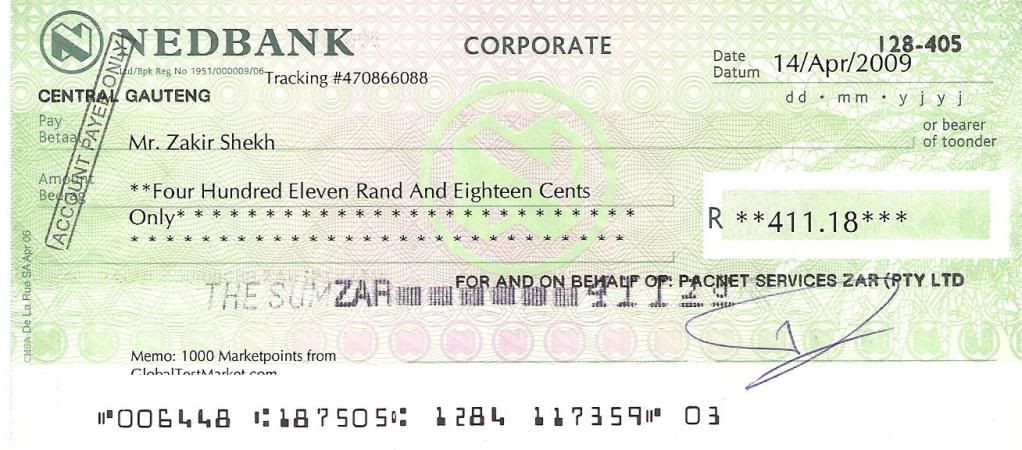
I got the image below from Photobucket. The description says that he got that check from GTM. Click to see full image.

GTM Cheque Pictures, Images and Photos
----------------------------------------------------------------------------------------------------------------------------------------------
Hope this post could help. :]
***I'll add the other sites on the coming days.


Internet Speed Booster


Want faster internet speed?


I am also trying to find something which can do such thing until I came across this one.
It can increase your internet speed into its maximum and I am currently using this one :]

Full Speed Internet Booster 3.3
Download this HERE.

How to install:
1. After download, extract the file.
a. If you have any extracting program you can use Winrar (Click here to download Winrar)

2. From the extracted files, run the Setup Application.
3. Finish the installation and Enjoy :]


I found it on this blog.

Look For More

free counters